Thank you for choosing
GameGoat !
By choosing us for your PC,
you’re guaranteed high-quality hardware and services.
Windows 11 pro
Your PC comes with an active Windows 11 Pro license. All you have to do is enjoy your experience without worrying about Windows activation.
2-Year Warranty Included
All our PCs come with a 2-year warranty from the date of purchase, covering parts, support, and troubleshooting.
Thoroughly Tested
Each unit is tested and optimized to deliver the best performance. Every component is carefully selected to ensure a reliable system.
Connectivity
Every PC offered by GameGoat comes equipped with an Internet access solution. Wi-Fi on assembled PCs and/or Ethernet, depending on your requirements.
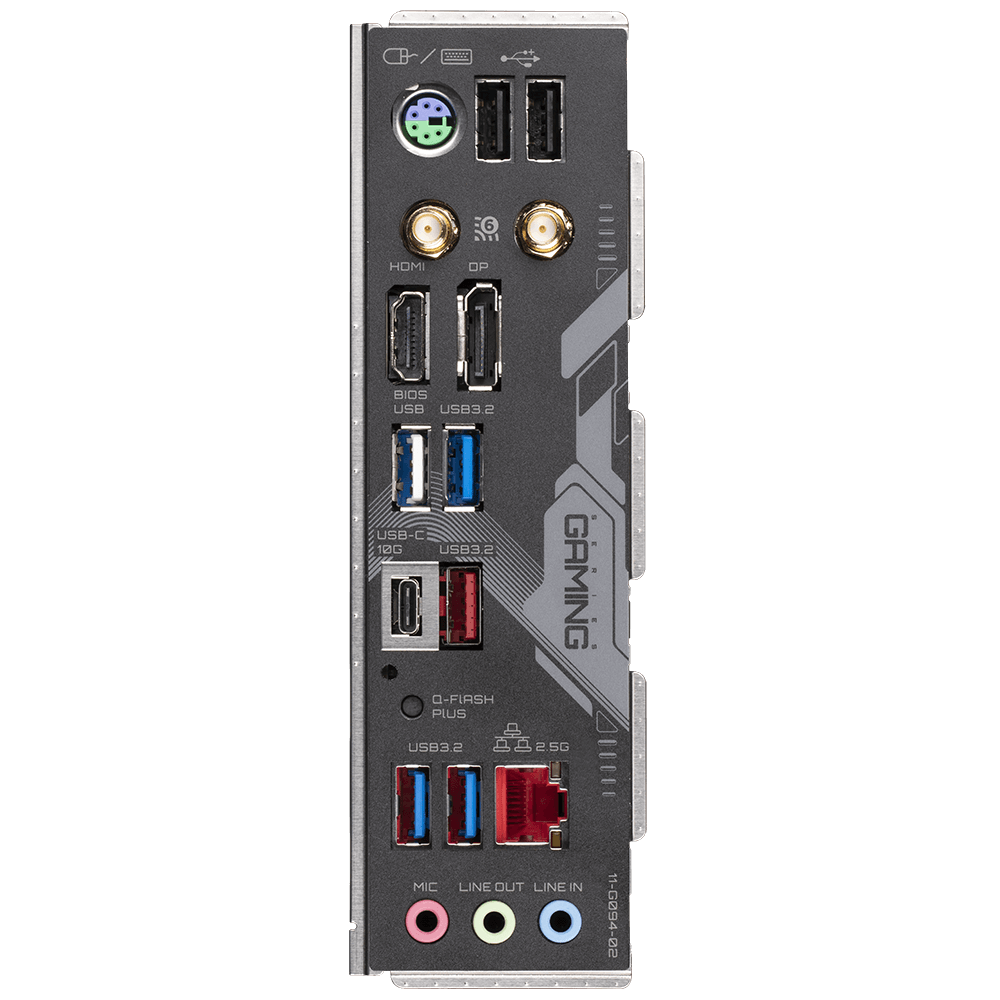
Without a Dedicated Graphics Card :
If your PC does not have a dedicated graphics card, you must connect your display cable (HDMI or DisplayPort) directly to the motherboard, at the top left. The processor will provide the video output to your screen.
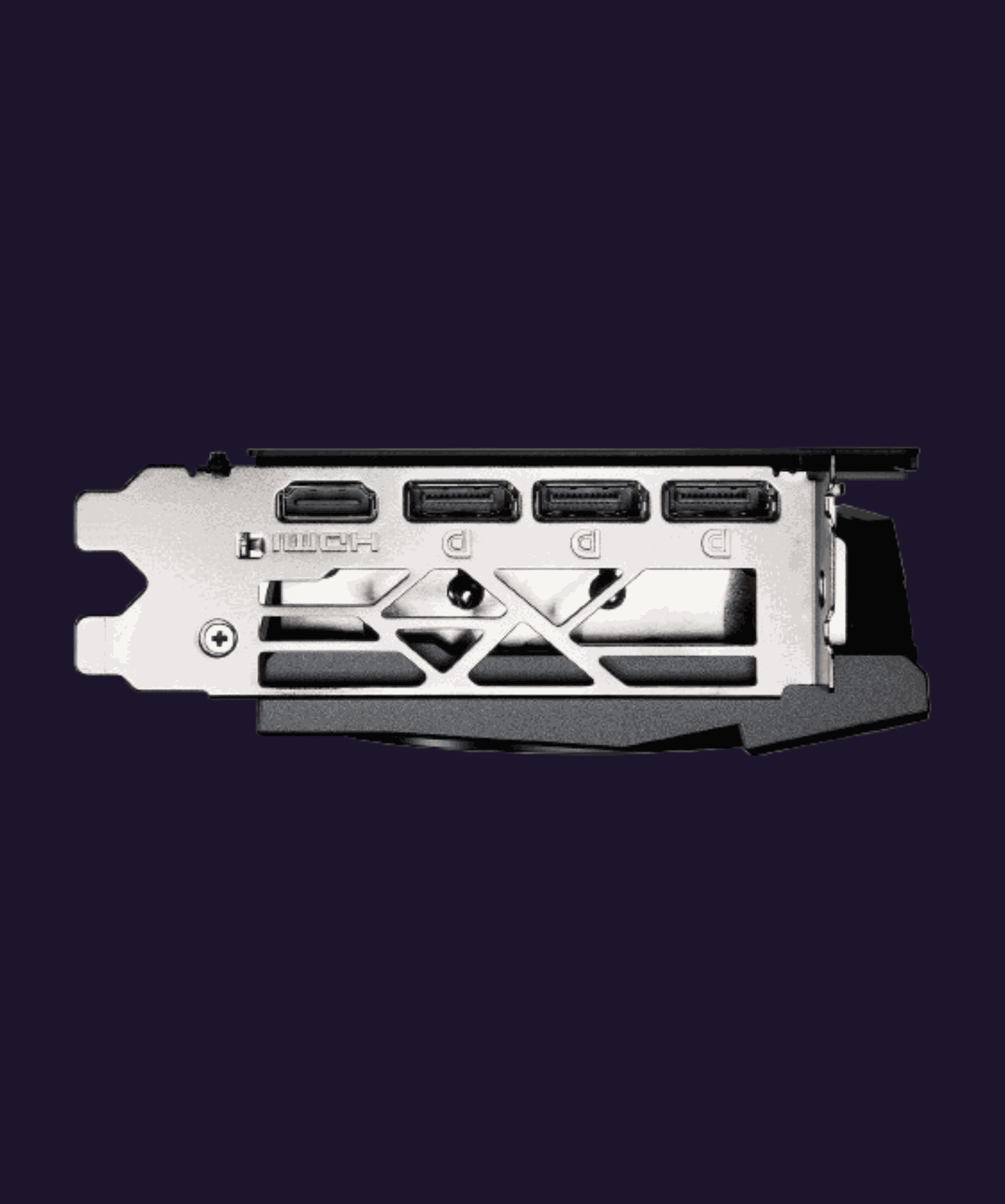
With a Dedicated Graphics Card :
If your PC has a dedicated graphics card, connect your display cable (HDMI or DisplayPort) directly to the graphics card. It will provide the video output to your screen.
We recommend using a DisplayPort cable for your main monitor.
If you plan to connect multiple monitors, do so step by step—one screen at a time—until your session has started.
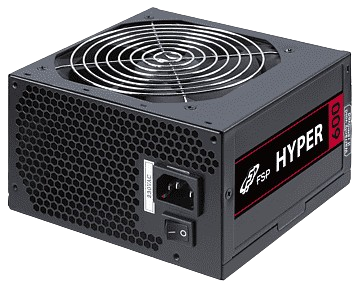
Démarrer correctement son PC
Branchez le câble d'alimentation à une prise puis au bloc d'alimentation de votre PC.
Poussez le bouton on/off ( o = éteint ; I = allumé )
Il ne vous reste plus qu'à enclencher le bouton de votre boitier pour allumer votre PC et en profiter !
Branchez le câble d'alimentation à une prise puis au bloc d'alimentation de votre PC.
Poussez le bouton on/off ( o = éteint ; I = allumé )
Il ne vous reste plus qu'à enclencher le bouton de votre boitier pour allumer votre PC et en profiter !
Branchez le câble d'alimentation à une prise puis au bloc d'alimentation de votre PC.
Poussez le bouton on/off ( o = éteint ; I = allumé )
Il ne vous reste plus qu'à enclencher le bouton de votre boitier pour allumer votre PC et en profiter !
Branchez le câble d'alimentation à une prise puis au bloc d'alimentation de votre PC.
Poussez le bouton on/off ( o = éteint ; I = allumé )
Il ne vous reste plus qu'à enclencher le bouton de votre boitier pour allumer votre PC et en profiter !
Starting Your PC Properly :
Plug the power cable into an outlet and then into your PC’s power supply.
Switch the power button (O = off; I = on).
All that’s left is to press the power button on your case to turn on your PC and enjoy!
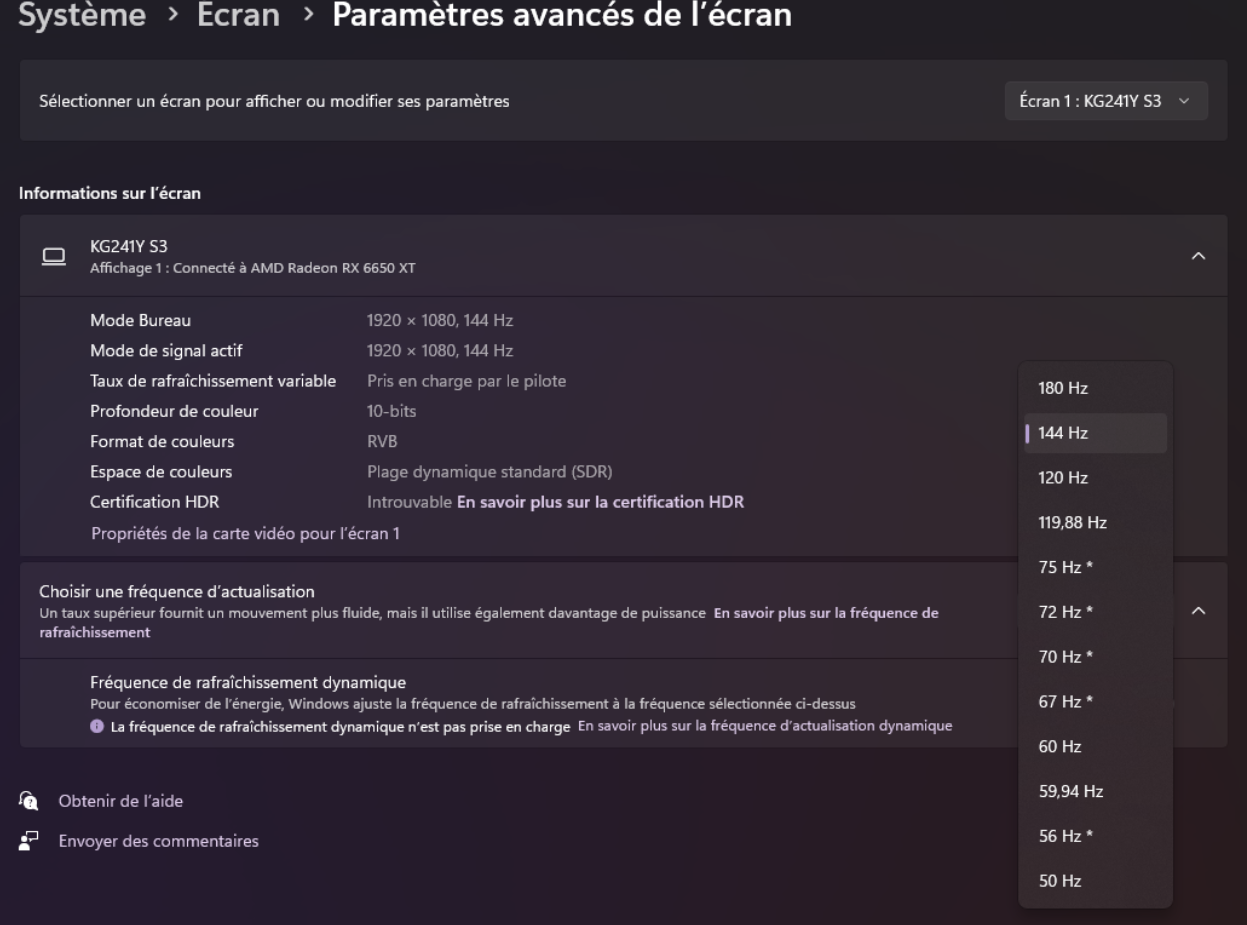
Bien régler son écran :
Accédez aux paramètres Windows puis suivez le chemin :
Système > Écran > Paramètres avancés de l'écran > Choisir une fréquence d'actualisation.
Vous pourrez alors sélectionner la fréquence d'affichage la plus adaptée à votre écran, la plus haute étant la meilleure.
Exemple : Vous possédez un écran de 144Hz (l'image s'actualise 144 fois/seconde) alors choisissez 144Hz dans le menu déroulant.
Bien régler son écran :
Accédez aux paramètres Windows puis suivez le chemin :
Système > Écran > Paramètres avancés de l'écran > Choisir une fréquence d'actualisation.
Vous pourrez alors sélectionner la fréquence d'affichage la plus adaptée à votre écran, la plus haute étant la meilleure.
Exemple : Vous possédez un écran de 144Hz (l'image s'actualise 144 fois/seconde) alors choisissez 144Hz dans le menu déroulant.
Setting Up Your Display :
Open Windows Settings, then follow this path:
System > Display > Advanced display settings > Choose a refresh rate
You can then select the refresh rate that best matches your screen—the higher the value, the better the smoothness.
Example: If you have a 144Hz monitor (the image refreshes 144 times per second), select 144Hz from the drop-down menu.

Do I need an antivirus ?
Windows currently includes Microsoft Defender.
It provides antivirus, anti-malware, and anti-phishing protection at a solid level.
It is a good basic security solution for most users.
If you have more specific needs, you may consider a paid antivirus solution.
Renaming your account :
Click the Windows icon and search for “Control Panel”.
Then go to User Accounts, and select “Change account type.”
Double-click the account named by default “GAMEGOAT”, then click “Change the account name.”
All you need to do now is enter the name you want for your account.
Please note that the change will take effect after you restart your PC.

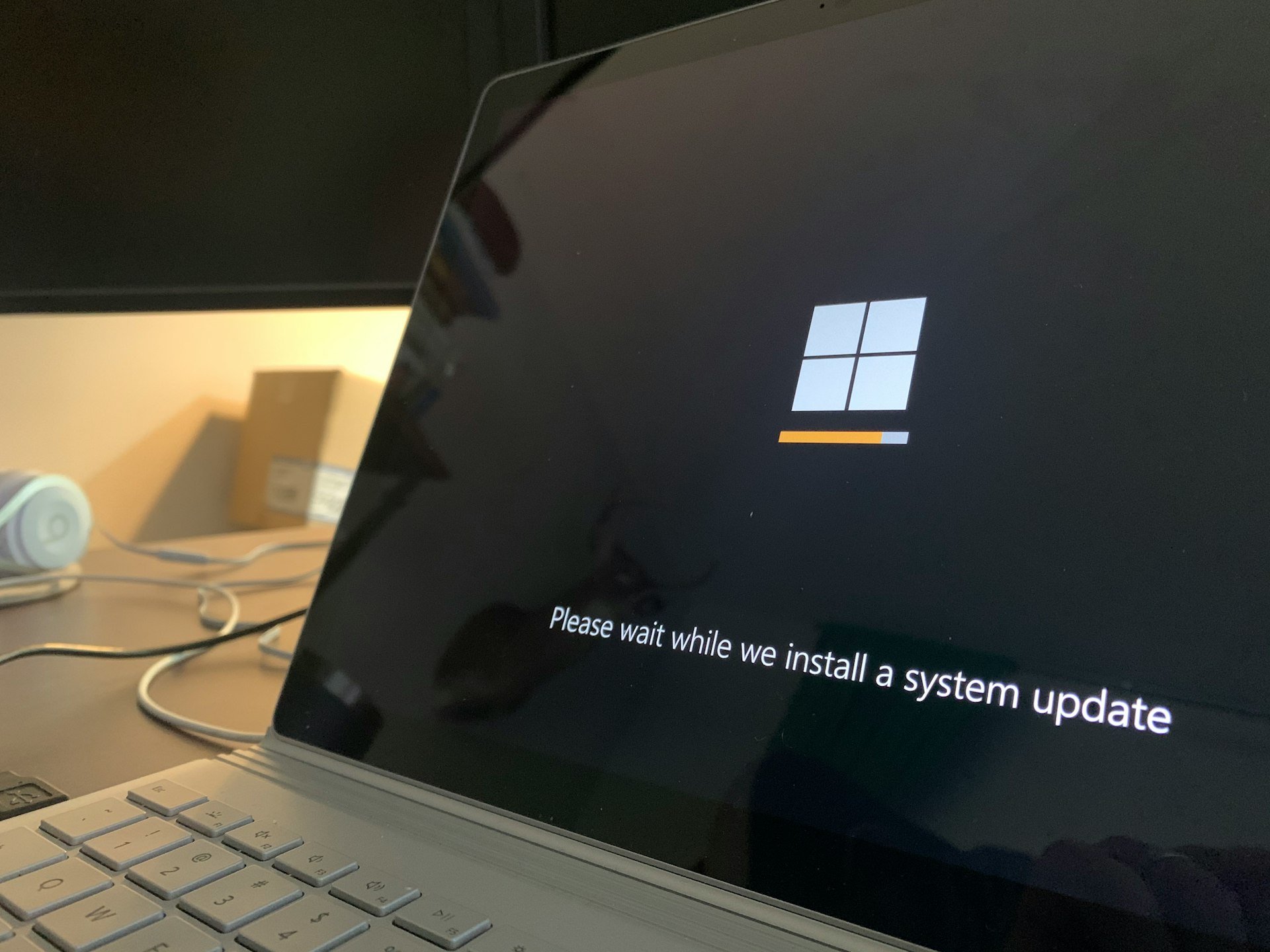
Keeping your PC up to Date
Un geste simple pour plus de sécurité et de performance
Updating your computer helps fix security vulnerabilities, improve speed, and prevent bugs. A PC that is up to date is safer and more efficient. Learn more
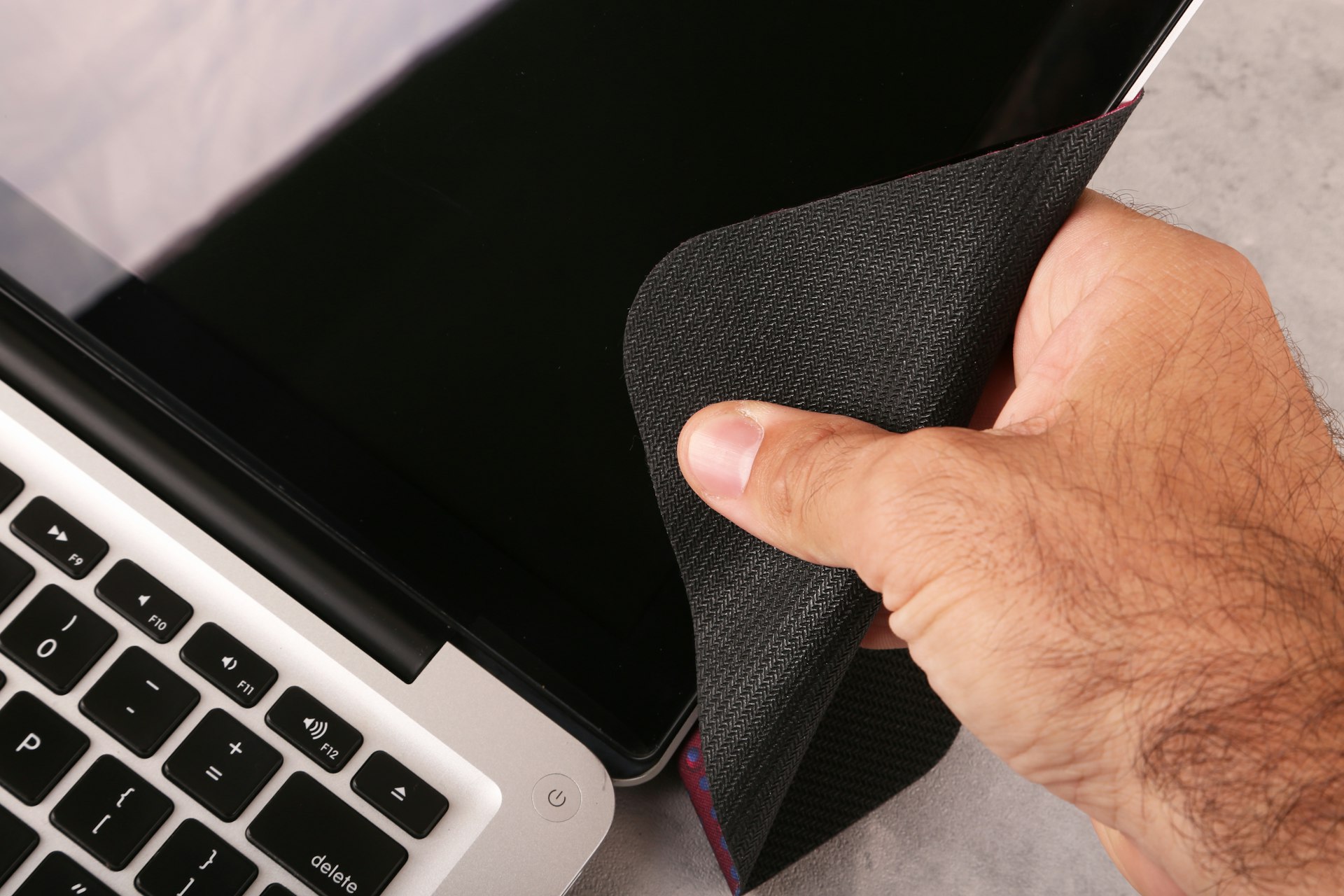
Maintaining Your PC
Don’t forget internal cleaning!
Dust can slow down and damage your computer. A thorough cleaning (fans, components, thermal paste) extends its lifespan and helps prevent overheating. Learn more
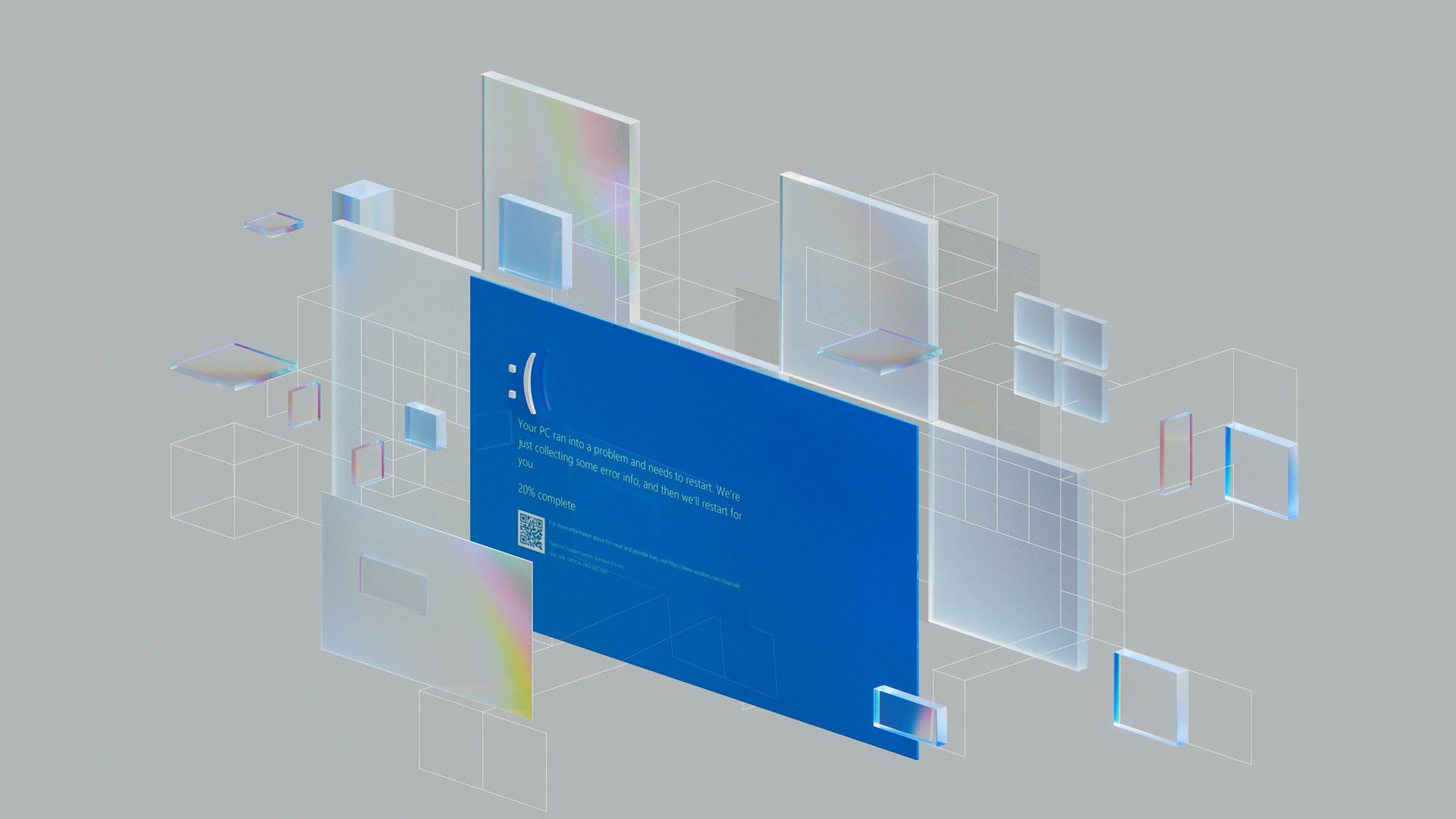
Troubleshooting your PC
A slow PC at startup or during use?
Blue screens, endless restarts, slowdowns, bugs…? We identify and fix the root cause so you can get back to a stable and reliable system. Learn more

Looking for better performance ?
Upgrade your PC!
Boost your PC with a custom upgrade. Give your machine a new lease of life and enjoy increased speed, smoother performance, and more power. Learn more
“Fantastic place for your digital troubles. They managed to restore my old photos after several attempts. Highly recommended!!!“
“Simple, efficace et rapide. PC prêt en 48h, quoi demander de mieux. Disponible pour les quelques questions qui restait. Je recommande !“
“merci beaucoup pour Windows j ai adoré tout les petits détails un grand merci et bravo ceci prouve un bon travail passionné“
"J'ai rarement été aussi bien conseillé dans une boutique. Je voulais faire une upgrade de mon pc et j'ai eu pleins de conseils sur le choix de mes pièces. Le service est impeccable, qualitatif et très arrangeant. Je recommande de fou cette boutique et ce qui est sûr c'est que je reviendrais pour mes futurs achats"
"Professionnel, ultra-réactif et de bon conseil. J'ai appelé en urgence pour mon CPU qui avait des problèmes de chauffe. On m'a pris en charge de suite. Diagnostic + changement du watercooling en moins de 2h ! Les prix sont plus que correcte et la qualité du service est irréprochable ! Je ne peux que recommander. Allez-y les yeux fermés ! Merci encore !!!"
Mon fils souhaitait avoir un ordinateur plus performant car un peu dépassé. Nous sommes allés en magasin et on nous a proposé d'optimiser son pc plutôt que de nous en débarrasser. Le résultat est top et mon fils est très satisfait ! La boutique a une ambiance très conviviale, celà manquait dans la région 👍
They’re talking about us—why not you?
Your satisfaction is our greatest reward.